[Manual Video] Handling an e-Naradoum Registration Rejection: Video and PDF
When a project registration submitted to e-Naradoum, the Korean government subsidy management system, is rejected, the person in charge first has to find where the reason is shown and what needs to be fixed. VisionPencil took screenshots of an actual rejected registration and turned the process, from checking the rejection reason to resubmitting, into a 3 minute 16 second guide video and a 10-page PDF manual. Both follow the same order, and both were added to the Daegu Technopark support program classroom.
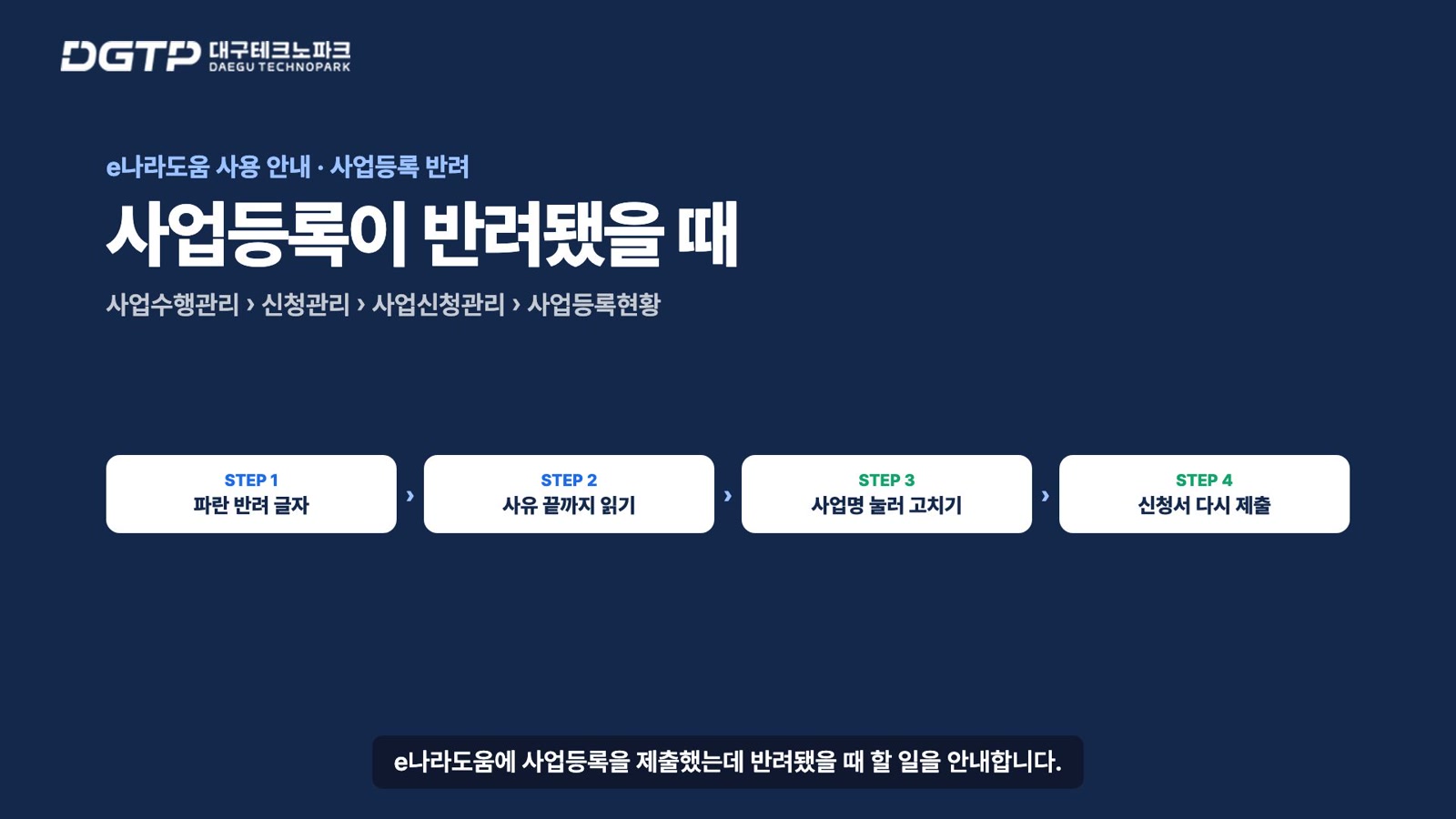
What material did we start with?
We started with seven screenshots of the rejected registration: the registration status list where the progress status had changed to Rejected, the registration progress detail window, and the rejection reason window. For the steps where the reason is fixed, we used screenshots of the Implementing Organization, File Attachment and Application Submission tabs taken when the same project was first registered.
Before production, we lined the screens up in the order they are actually clicked. Because the reason window could appear to have two entry points, we settled on clicking the blue Rejected label in the list. We also settled on opening the edit screen by clicking the project name. Fixing these branches before writing the script keeps the video and the booklet in the same order.
How is the video structured?
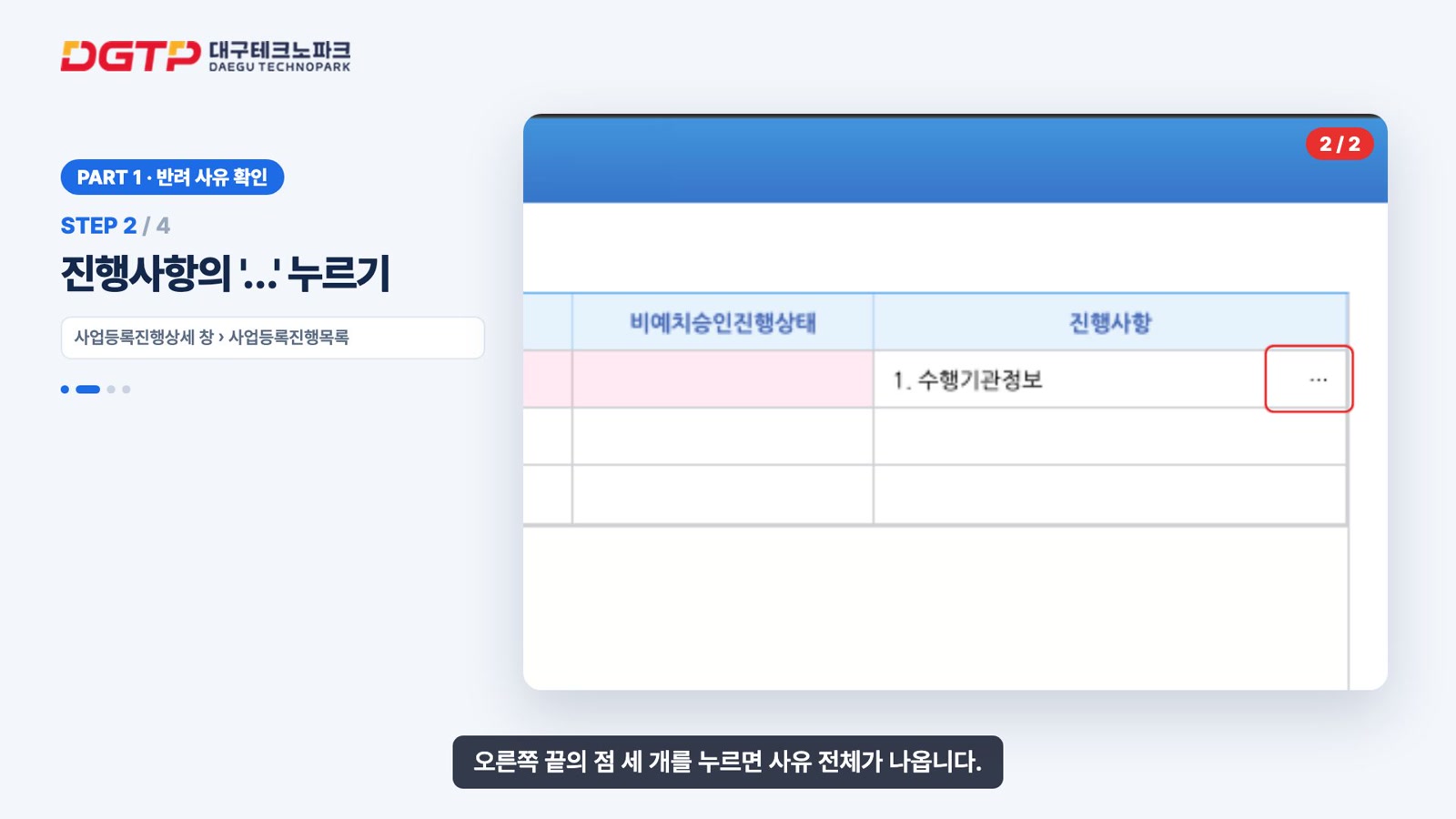
The video has two parts. The first covers four steps for checking the rejection reason. Only the first line of the reason appears in the progress column, so we added a dedicated scene showing how to click the three dots at the right end to open the reason window and scroll to the bottom. In this case the reasons were the transfer permission settings in the organization information and four documents to attach.
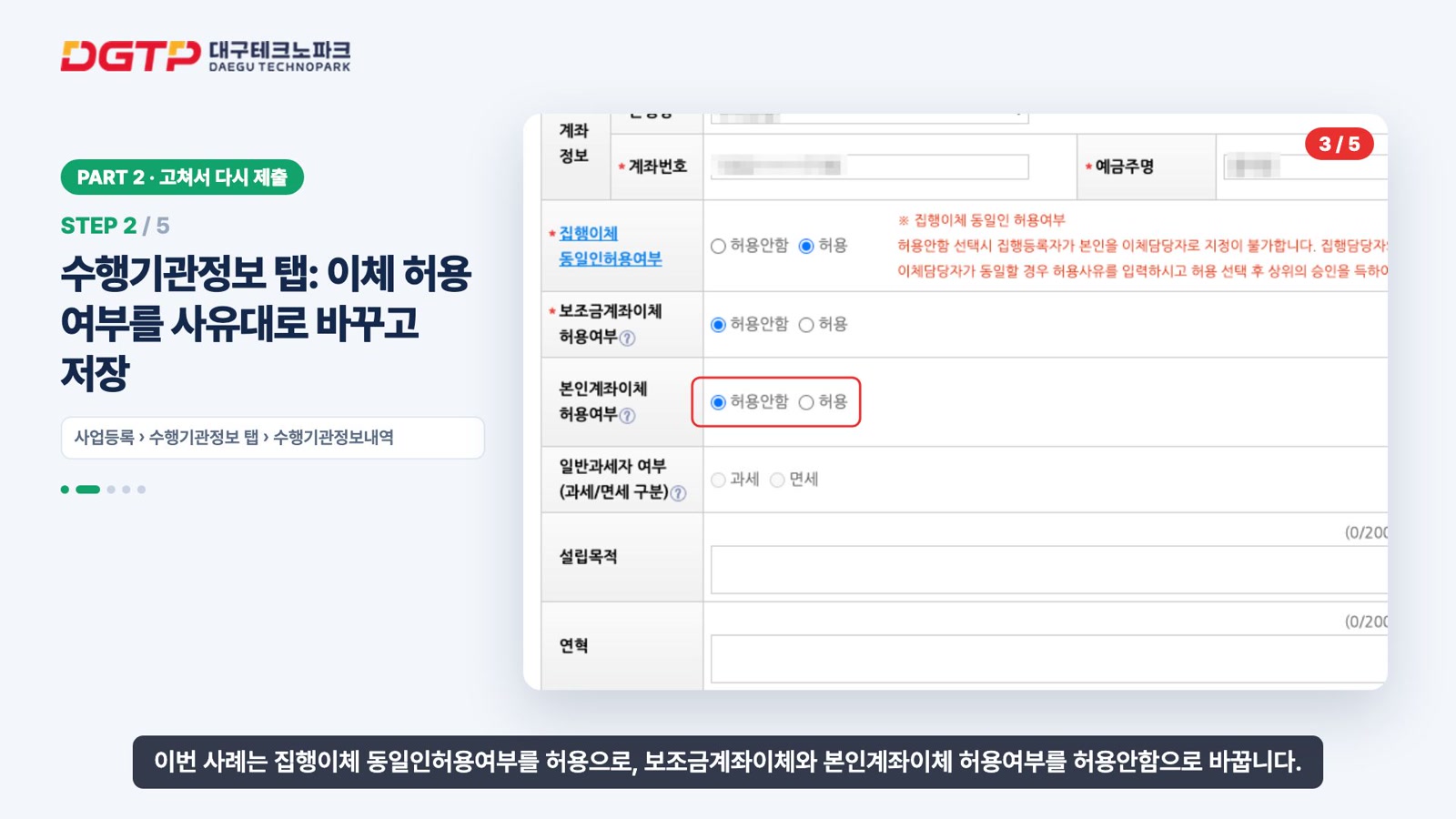
The second part covers five steps for fixing and resubmitting. Click the project name to open the registration screen, change the transfer permission settings in the organization tab as the reason states, upload the documents in the attachment tab, then check the completion status in the submission tab and submit. The last scene is a table summarizing the same order so it can be repeated if the registration is rejected again.
Every scene runs on the actual screenshots. The view moves toward the spot to click, numbered red outlines blink in order, and subtitles matching the narration appear at the bottom.
What did review change?
In the first cut, the organization information scene showed the values entered at the first registration. The narration said to change a setting to Allowed while the screen still showed Not allowed. During review we replaced it with a screen showing the corrected values: same-person transfer allowed for execution transfers, and subsidy account transfers and own account transfers set to not allowed. The same screen was updated in the PDF.
Names, company names, addresses, contact details, business registration numbers, bank accounts, project numbers and project plan text in the screenshots were located with text recognition and blurred. A person then checked each screenshot again and blurred one more name that text recognition had missed.
What went into the PDF manual and the classroom?
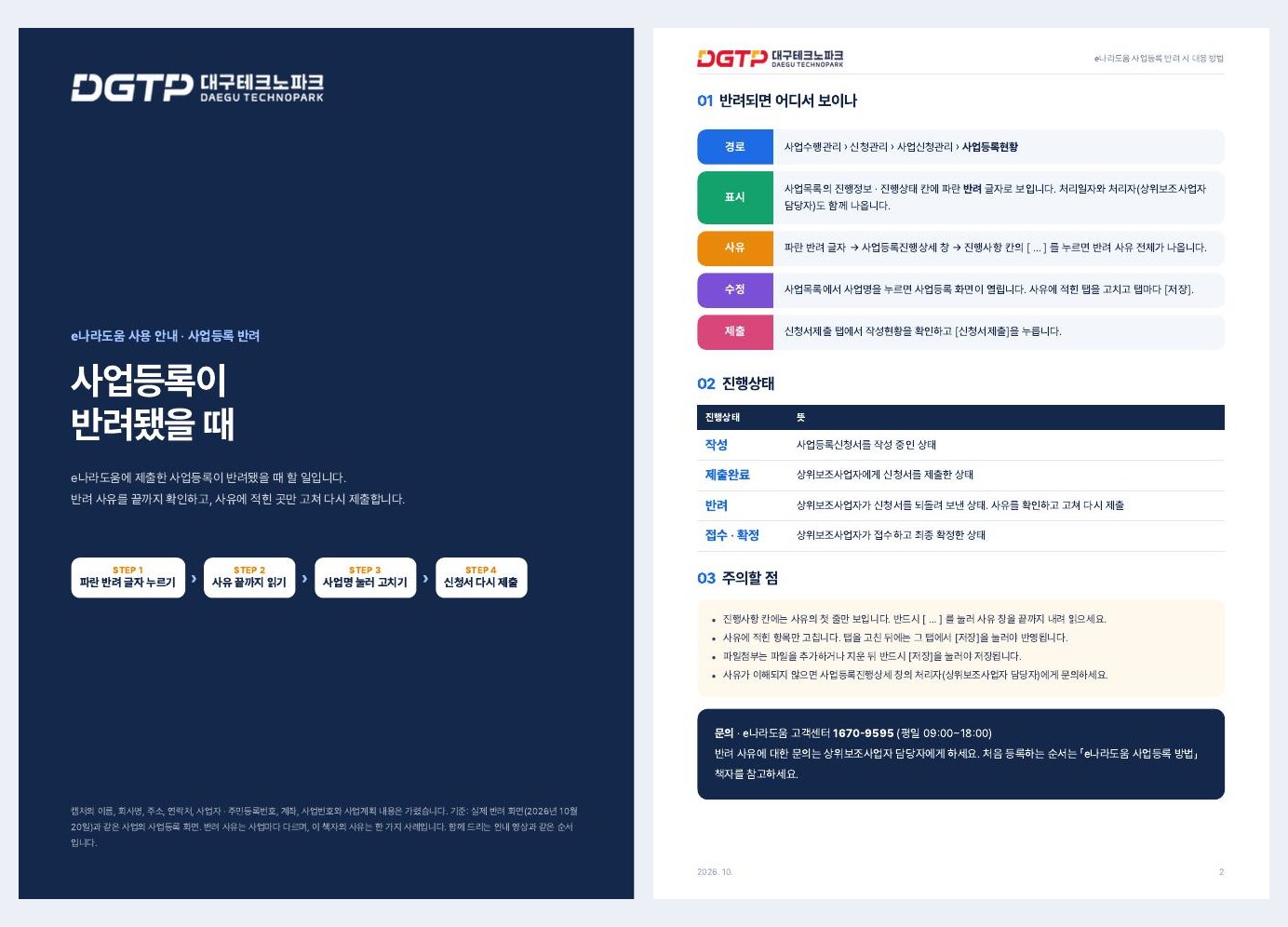
The PDF manual has a cover, a one-page summary (where a rejection appears, what each status means, and points to watch), and step cards for each part. The images and numbers on the step cards match the video, so a viewer can open the booklet in the middle of the video and find the same place.
In the classroom, the video comes with nine chapter shortcuts, sentence-level subtitles, a summary and a four-question quiz, and the PDF can be downloaded below the video. Earlier guides on registering as an organization authority manager and on project registration were made the same way and sit in the same course. The classroom is available on the Daegu Technopark training site.
Guides for following work screens are hard to deliver with documents alone, because it is difficult to show exactly where to click. With screenshots, a video and a booklet can be made in the same order. The production process is described on the manual video production page, and the training site setup on the LMS page. For inquiries, contact us through KakaoTalk chat or at +82 10-9504-6000.
Frequently asked questions
Can a manual video be made from screenshots alone?
Yes. This video uses seven screenshots. If you first decide the click order and which branch to show, we add the narration, subtitles and click markers.
How is personal information in the screenshots handled?
We locate names, contact details, bank accounts and similar information with text recognition, blur them, and then a person checks each screenshot again. In this project, review caught one name the automatic step had missed.
What is the benefit of making a video and a PDF together?
Because both use the same screenshots and numbers, viewers can follow the flow in the video and look steps up again in the booklet. When one is corrected, the other is corrected too, so they stay consistent.